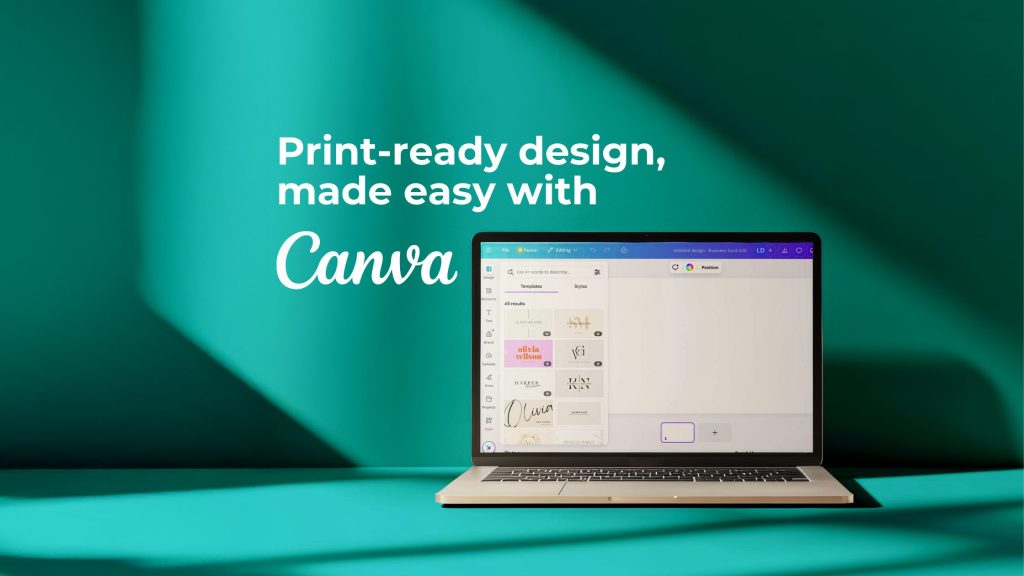
Designing and printing on kaizenprint.com couldn’t be easier with our Canva Integration! Create stunning designs effortlessly using Canva’s intuitive tools, and print directly with us for a hassle-free experience from start to finish.
What is Canva?
Canva is a web-based design tool that allows users to create professional, eye-catching designs without the need for advanced graphic design skills or professional design software.
Canva boasts a wide range of templates, images, design elements and fonts that allow you to create high quality graphics for business or personal use.
You can use Canva’s free plan, with access to an abundance of templates, stock photos and graphics, or you can upgrade to a Canva Pro account which unlocks many additional features or tools.
Whether you are a beginner or experienced designer, you can now design directly in Canva and seamlessly send your artwork to print with just a few clicks.
Getting Started
Follow these simple steps to be on your way to designing and printing high quality graphics!
- Browse our product range.
- Start building your product specification including size, paper type, finish and any other elements specific to your desired product.
- Choose your desired quantity.
- Once you are happy with your configuration, click ‘Connect to Canva’.
- You will be prompted to grant permissions and login to your Canva account, or create a new account.
- Once you have connected to Canva, you will be brought to a pre-made template which has been specifically created with the dimensions specified when building your product.
- Get creative! It’s time to complete your design using Canva’s elements or uploading your own assets such as images, logos and more.
- Once you have finished, click ‘Return to kaizenprint.com’ and you will be directed back to our site. Our clever integration means your print-ready artwork will automatically be uploaded to our site.
- Add any notes to your order and click ‘Save Upload and Add to Cart’.
- Complete your order!
Design best practices
Our design best practices help you create professional, eye-catching visuals with ease in Canva. From balanced layouts and consistent branding, to clear typography and high-quality imagery, these guidelines ensure your designs are both impactful and effective.
- When uploading images, make sure they are high quality.
- Keep content and design elements within the safe zone- we recommend at least 3mm away from the edges of the design.
- Start with a clear visual hierarchy- make the most important elements stand out first, using size, bold fonts or colours to guide the viewers eye.
- Be consistent with fonts- using too many different font styles can get messy.
- Align elements to a grid or edge, e.g. left, centre or right.
- Don’t overcrowd your design- utilise white space to help your design feel balanced.
- Make sure text is legible by avoiding tiny font sizes and using colours that have a high contrast.
Important things to consider when designing with our Canva Integration
Page count requirements
Your finished design must match the exact number of pages selected in your product configuration. For example, if you have selected a 48 page booklet, your Canva design must include all 48 pages in the correct running order.
Double sided printing
If you are printing a double sided product such as business cards, your design must include both side 1 and side 2. For multi-panel prints such as tri-fold leaflets, you must include designs for all required panels.
Handling multiple designs in one file
You can create multiple versions of your design in the one file. For example, if you are ordering 500 business cards, you can create 2 different designs and print 250 of each. If you are creating multiple designs within the one file, please specify in the notes section at checkout the required quantities for each design. I.e. Design A x250 copies, Design B x250 copies.
Need help?
If you need any assistance or have any questions, you can contact our team via web chat, email or telephone and we would be happy to assist you!